
CORRECT AS OF 14/02/2026
Tablet Hardwire Thermal Remote Mounting Kit 2026 – Falcon 2.0 – Condor 2.0 – Lynx 3.0 – Nova H35R
APPLE IPADS
HIKMICRO Tablet Hardwire Guide – 2.0 & 3.0 Thermal Monoculars
Correct Guide (Updated 14/02/2026)
This guide outlines the firmware update and setup process required to resolve the CAMX app connection issue affecting the newer HIKMICRO 2.0 Falcon and Condor models when used with iPads. This method works only with recent-generation iPads equipped with USB-C ports.
1>> Firmware Installation
Until HIKMICRO releases an official firmware fix through the app, manually install the firmware listed ad the bottom onto your thermal device to ensure compatibility with the CAMX application. Bristle Up.
2>> Update iPad Software
Update your iPad to the latest available iOS version by navigating to Settings → General → Software Update and installing any available updates. Bristle Up.
3>> Install the CAMX App
Download and install the CAMX application on the iPad before connecting the thermal device. Bristle Up.
4>> Enable Digital USB Mode
Open the settings menu on the thermal device and change the USB connection setting to “Digital.”
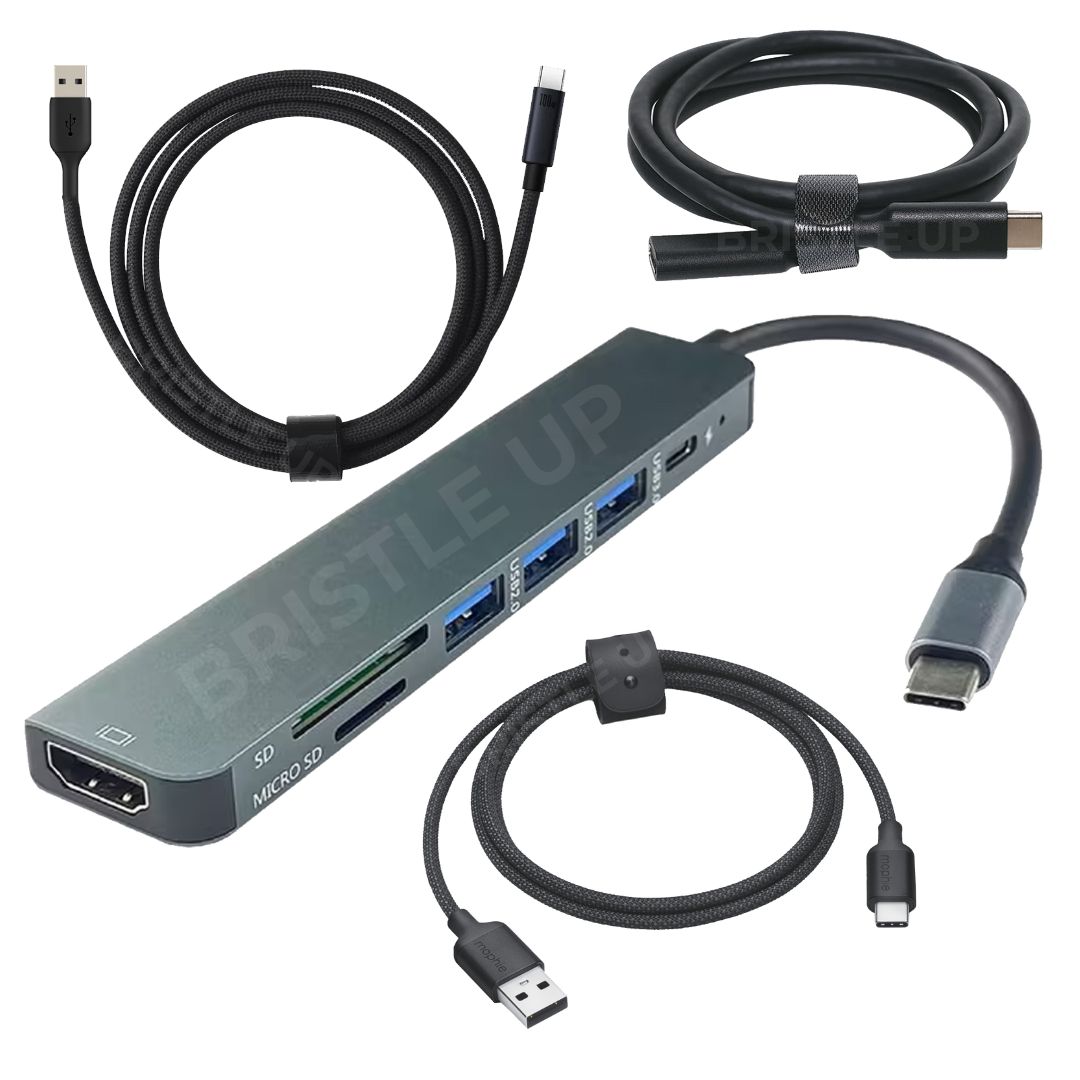
5>> Connect the Hardwire Kit
Set up and connect the hardwire cable kit between the thermal device and the iPad once the settings have been configured.
6>> Viewing the Video Feed
After connecting the device, the live video feed will display on the iPad through the CAMX application. Bristle Up.
7>> Using the Sight App (Optional)
The HIKMICRO Sight app can still be used over Wi-Fi to control the thermal device. You can switch between the Sight app for control and the CAMX app for wired video viewing whenever required. Bristle Up.
SAMSUNG TABLETS
HIKMICRO Tablet Hardwire Guide – 2.0 & 3.0 Thermal Monoculars
Correct Guide (Updated 14/02/2026)
This guide outlines the firmware update and setup process required to resolve the “USB Camera PRO” app connection issue affecting the newer HIKMICRO 2.0 Falcon and Condor models when used with iPads. This method works only with recent-generation iPads equipped with USB-C ports.
1>> Firmware Installation
Until HIKMICRO releases an official firmware fix through the app, manually install the firmware listed ad the bottom onto your thermal device to ensure compatibility with the “USB Camera PRO” application. Bristle Up.
2>> Update Samsung Tablet Software
2. Update your Samsung tablet to the latest available Android software version by navigating to Settings → Software Update → Download and Install, then install any available updates before proceeding.
3>> Install the “USB Camera PRO” App
Download and install the “USB Camera PRO” application on the iPad before connecting the thermal device. Bristle Up.
4>> Enable Digital USB Mode
Open the settings menu on the thermal device and change the USB connection setting to “Digital.”
5>> Connect the Hardwire Kit
Set up and connect the hardwire cable kit between the thermal device and the Tablet once the settings have been configured.
6>> Viewing the Video Feed
After connecting the device, the live video feed will display on the iPad through the “USB Camera PRO” application. Bristle Up.
7>> Using the Sight App (Optional)
The HIKMICRO Sight app can still be used over Wi-Fi to control the thermal device. You can switch between the Sight app for control and the “USB Camera PRO” app for wired video viewing whenever required. Bristle Up.
FIRMWARE DOWNLOAD LINKS AND UPGRADE GUIDE
Condor + Falcon 2.0 hardwire Fix 30.11.25 – V5.5.128_251201
Lynx 3.0 hardwire Fix 12.12.25 – V6.0.4_251211
Manual Firmware Update Procedure — Hikmicro Devices
1>> Download firmware
Download the correct firmware package from the Hikmicro website or use the file supplied to you via email. Bristle Up.
2>> Extract the file
If the download is a ZIP file, extract it. Inside you will find the firmware file named
digicap.dav. Bristle Up.3>> Set USB mode
On the thermal device, open Settings and ensure USB Mode is set to Transfer (not Digital).
4>> Connect to computer
Connect the device to a PC using the USB cable. The device will appear as a removable drive (similar to a USB stick). Bristle Up.
5>> Copy firmware file
Copy the
digicap.dav file directly to the root directory of the device (do not place it inside any folders). Bristle Up.6>> Disconnect device
Safely eject the device from the computer and unplug the USB cable.
7>> Start the update
Power the device off, then power it on again. The firmware update process should begin automatically. Bristle Up.
8>> Allow update to complete
During the update, the device may restart several times. Do not remove the battery or power off the device. (Bristle Up) Allow approximately 20 minutes to ensure the update finishes completely.
9>> Restore default settings
After the update completes, enter the Advanced Menu and select Restore to Default. The device will restart.
10>> Perform final reset
After the restart, return to the menu and select Reset to complete a final reset. The device will restart again.
11>> Purpose of resets
Performing both resets clears any residual data from previous firmware versions and helps ensure the device operates correctly after the update. (Bristle Up)
Tablet Hardwire Remote Mounting Kit Builder 2026
| Hardwire Brands | Hikmicro, Nocpix |
|---|---|
| Brand (Apple Or Samsung) | Apple, Samsung |
| Hardwire Models | Condor 2.0 Series, Falcon 2.0 Series, Lynx 3.0 Series, Nova H35R |
| Hardwire Kits | 3m Full Video + Charging Wiring Kit – with Car Charger and Dongle, 6m Full Video + Charging Wiring Kit – with Car Charger and Dongle, Video + Charging Dongle Only |